Choosing The Perfect WiFi AP For Home A Practical Guide
When your standard router just can't keep up, a dedicated wifi ap for home is the secret to getting stable, far-reaching, and reliable internet. It works by offloading all the wireless heavy lifting from your main router, acting as a powerful, specialised antenna for all your devices.
When Your Router Is No Longer Enough
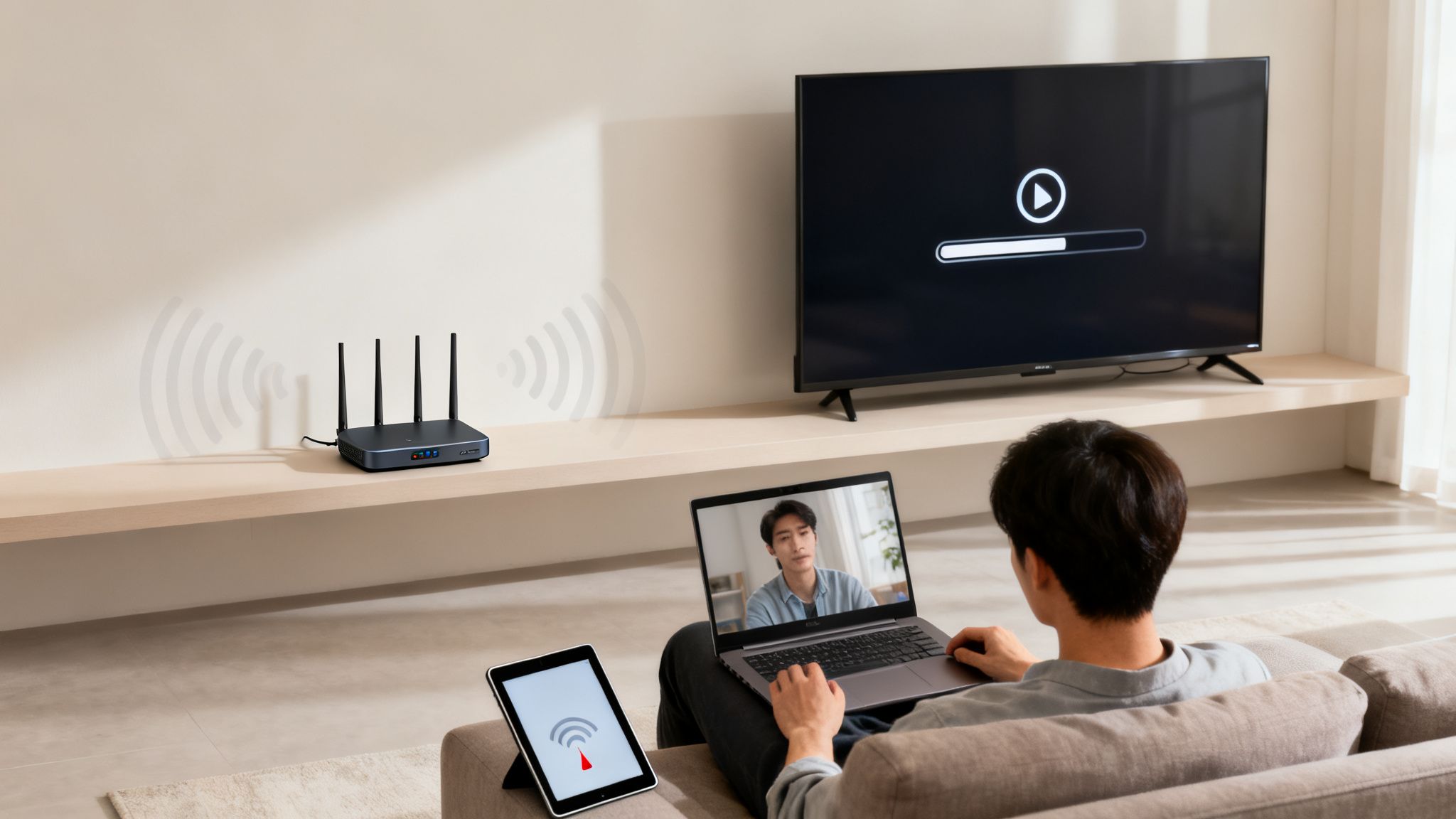
Let’s be honest, that single box from your internet provider is probably struggling. You’re paying for fast broadband, but the reality inside your home is buffering video, dropped work calls in the upstairs office, and frustrating dead zones in the back garden.
If that sounds familiar, it's a clear sign your network is overloaded.
In a modern home packed with smart devices, laptops, and 4K TVs, the all-in-one router becomes a bottleneck. It’s trying to be a modem, a router, a network switch, and a wireless access point all at once. This jack-of-all-trades approach often means it ends up being a master of none, especially when it comes to Wi-Fi.
Pinpointing Your Network's Pain Points
This problem has only gotten worse as UK homes have filled up with connected tech. The demand for robust Wi-Fi has skyrocketed, with over 63% of households now running smart thermostats, cameras, and assistants. And even though average broadband speeds are hitting 100Mbps, a significant 32% of homes still experience dropouts from having too many devices connected at once.
This is exactly where understanding your hardware options becomes critical. You don't always need to rip everything out and start again; sometimes, you just need to augment what you already have.
- Standard Router: The familiar all-in-one box. It’s perfectly fine for smaller homes with just a handful of devices, but it quickly hits its limits with poor coverage and can’t handle a crowd of connections.
- Mesh System: This is a set of matching nodes that completely replace your router's Wi-Fi, creating one big, seamless network. It’s a very user-friendly way to kill dead zones, but you lose a lot of the fine-tuning and performance you get with dedicated access points.
- Wi-Fi Access Point (AP): This is a specialised device that does one thing and does it brilliantly: handle the wireless connection. It plugs directly into your existing router via an Ethernet cable and is built to manage dozens of connections flawlessly, delivering enterprise-grade performance and reliability.
Router vs Mesh vs Access Point (AP) At A Glance
To make it even clearer, here's a quick comparison to help you decide which gear is right for your situation.
Choosing the right hardware comes down to balancing ease of use with the level of performance and control you really need.
By offloading all the wireless tasks to a dedicated Wi-Fi AP, you let your router focus on what it does best: managing your wired traffic and your connection to the internet. This division of labour is the key to unlocking the stable, high-performance network you’re paying for.
While some people might first reach for a Wi-Fi extender, it’s important to understand their limitations. If you're curious about how they stack up, you might find our guide on whether Wi-Fi extenders work useful. For any demanding home network, a proper access point provides a far more robust and stable connection.
Decoding The Specs: What Really Matters
Staring at a product page for a home Wi-Fi AP can feel like trying to decipher an alien language. You get bombarded with a wall of acronyms—MU-MIMO, WPA3, PoE—and it’s hard to tell what’s just marketing fluff. Let's cut through the jargon and focus on the specs that will genuinely make a difference to your daily internet experience.
These features aren't just bullet points on a box; they directly translate into a smoother, faster, and more secure network for everything from work video calls to streaming 4K movies. Getting your head around them is the key to buying hardware that actually solves your connectivity headaches.
WiFi 6 And Beyond
One of the biggest terms you'll see splashed everywhere is WiFi 6 (802.11ax). While it absolutely offers faster potential speeds, its real superpower in a busy, modern home is efficiency. Think of it less like raising the speed limit and more like adding extra lanes to a motorway.
WiFi 6 is built from the ground up to handle dozens of devices at once without grinding to a halt. It uses a clever bit of tech called OFDMA (Orthogonal Frequency-Division Multiple Access) to split a wireless channel into smaller chunks. This lets it talk to multiple devices—your phone, smart thermostat, and laptop—all at the same time, rather than making them wait in line. You can learn more about this in our deep dive into the benefits of WiFi 6.
For a modern smart home, WiFi 6 isn't a luxury; it's a necessity. It’s the difference between a network that stays fast when everyone is online and one that crawls to a halt.
Another piece of the puzzle is MU-MIMO (Multi-User, Multiple-Input, Multiple-Output). This lets an AP communicate with multiple devices simultaneously, a massive upgrade from older tech that could only serve one device at a time. It's another critical feature for keeping things running smoothly in a house full of gadgets.
The Power Of A Single Cable
A specification you should actively hunt for is Power over Ethernet (PoE). This is an absolute game-changer for installation, as it allows a single Ethernet cable to carry both the data connection and the electrical power to your AP.
What this means in practice is that you don't need to stress about finding a power socket in the ceiling or high up on a wall—exactly where you need to put an AP for the best coverage. You just run one cable from a PoE-capable switch or a small adapter called a PoE injector. It makes for a much cleaner, more professional, and infinitely more flexible installation.
Security And The Broader Ecosystem
Finally, always check the security standards. WPA3 is the latest and most secure protocol you can get, offering far stronger protection against password-guessing attacks than its predecessor, WPA2. With our home networks becoming more complex, robust security really isn't negotiable.
The demand for better home Wi-Fi is exploding. In the UK, the residential Wi-Fi access point market is growing rapidly, mirroring a global trend where bandwidth demand in homes is projected to surge by a staggering 500% by 2029. This pressure is pushing many people to upgrade, with security being a top concern. You can read more about the growth of the gigabit Wi-Fi market.
It's also worth thinking about the vendor’s ecosystem. Brands like UniFi, Aruba, or Ruckus offer centralised management controllers. This gives you a single dashboard to easily manage multiple APs, roll out firmware updates, and monitor your entire network—a huge convenience, especially if you plan on adding more APs down the line.
Mapping Your Home For Flawless Coverage
Even the most powerful wifi ap for home will deliver a pretty miserable experience if you just chuck it in a basement closet. Before you drill a single hole or run any cable, taking ten minutes to think like an installer will save you hours of frustration later. It's the secret to killing those dead zones for good.
This process is often called a site survey, but don't worry, you don't need any fancy gear. Just grab a rough floor plan of your home—a quick sketch on a piece of paper is perfectly fine. Your mission is to spot two things: where you absolutely need a rock-solid signal, and what physical objects are trying to stop you.
Finding Your Signal Killers
Wi-Fi is just radio waves, and some building materials are notoriously good at blocking them. As you walk through your house, take a mental note of what your walls are made of. This is single-handedly the biggest factor affecting your coverage.
- Low Impact: Standard plasterboard and timber studs are pretty easy for Wi-Fi to punch through.
- Medium Impact: You'll see a noticeable drop-off when signals have to cross glass or thick timber walls.
- High Impact: Brick, stone, and especially older lath and plaster walls (which often hide a metal mesh) are famous for killing Wi-Fi signals.
- Extreme Impact: A signal hitting solid concrete or large metal objects like fridges or steel beams isn't going anywhere. It's basically a full stop.
A signal fighting its way through a dense brick fireplace to reach the smart TV in the living room is going to be far weaker than one zipping through a simple plasterboard wall to an upstairs bedroom.
Prioritising High-Traffic Zones
Next, mark up your map with the spots where a flawless connection is non-negotiable. This isn't just about where you browse the web, but where you put your connection under serious strain.
Think about the home office for those crucial video calls, the living room where the family streams 4K films, or the kitchen where a tablet is always on the go. These are your primary coverage zones. Bedrooms or the back garden patio might be secondary zones. Knowing your priorities helps you place the AP where it'll do the most good. If you're wondering how many APs you might need for your home's size and construction, using a handy access point calculator can give you a great starting point.
The golden rule of AP placement is centrality. An access point radiates its signal outwards in a doughnut-like shape. Mounting it high up on a central ceiling, away from obstructions, lets that signal spread evenly down and out, covering the biggest possible area.
If you stick an AP on a bookshelf in the corner of a room, you're immediately wasting half its potential broadcasting directly into an outside wall. A high, central mounting point is almost always the best choice for covering an entire floor and making sure your new hardware performs at its peak.
From Box To Blazing-Fast: Your AP Setup Guide
With your ideal locations mapped out, it's time to roll up your sleeves and get hands-on. This is the part that often feels the most intimidating, but honestly, installing a Wi-Fi AP for home use is surprisingly straightforward once you know the basics. Let's walk through the physical mounting and the essential software tweaks to get you from an unopened box to a rock-solid network.
The physical setup really just boils down to one cable. Most modern access points run on Power over Ethernet (PoE), which is a game-changer. It means a single Ethernet cable running from your router or network switch delivers both the data connection and the electricity. No more hunting for a power socket in the ceiling.
You’ll typically use a small box called a PoE injector, which lives near your router. One Ethernet cable plugs from the router into the injector, and a second, longer cable runs from the injector all the way to your AP. Simple as that.
Diving Into The Control Panel
Once your AP is mounted, connected, and powered on, it's time to jump into the software. Every brand has a slightly different interface, but the process is generally the same: you find the AP on your network and log in to its web control panel or a dedicated mobile app. This is your command centre for setting up the wireless networks your devices will actually connect to.
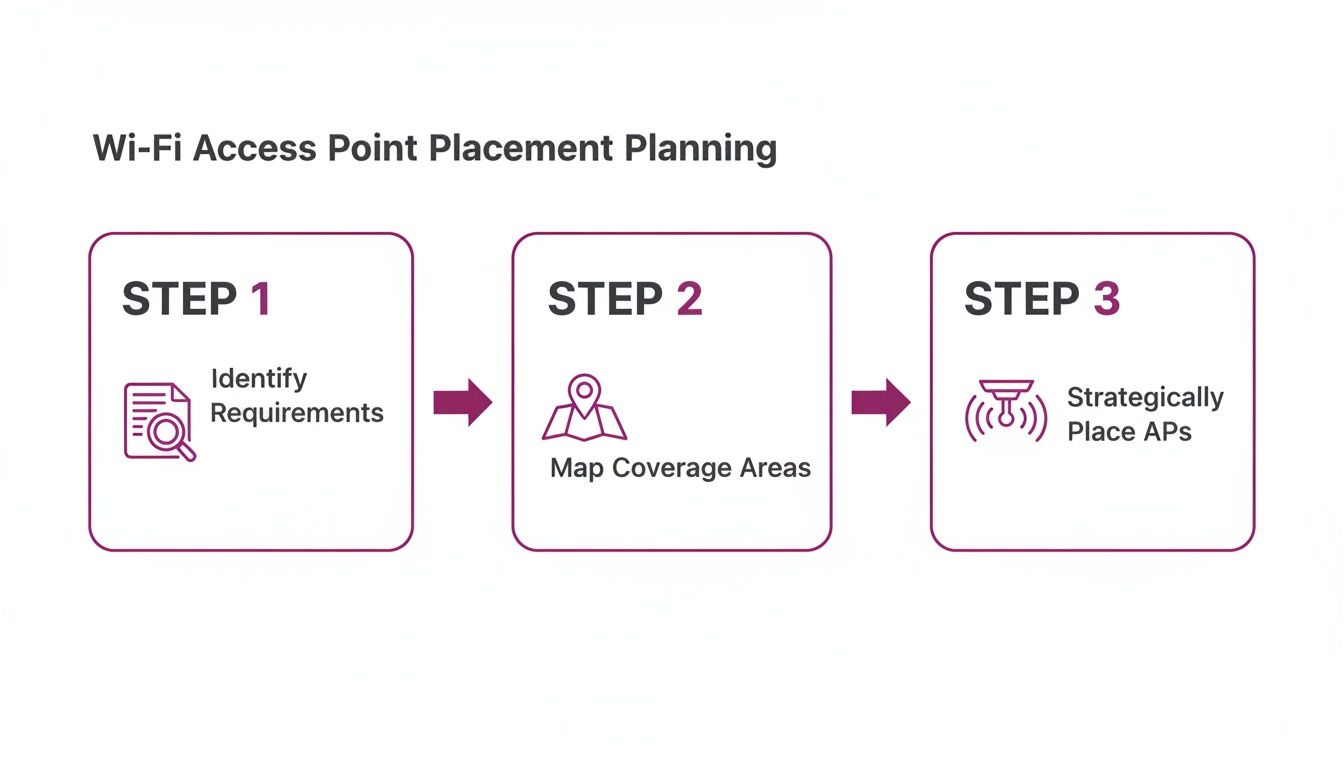
This kind of structured approach—thinking about requirements, coverage, and placement before you start drilling holes—is what separates a flaky network from a flawless one.
Essential Network Configuration
Your first job in the control panel is to set up your main, private network. This is the secure space where your personal laptops, phones, and trusted smart home devices will live.
- Set a Strong SSID: This is just the name for your Wi-Fi network. Make it unique, but it’s best practice to avoid using personal info like your surname.
- Enable WPA3 Encryption: If WPA3 is an option, use it. No question. It's a massive security leap over the older WPA2 standard and helps protect you against modern password-guessing attacks.
- Create a Secure Password: Go for a long, complex password or, even better, a passphrase that mixes letters, numbers, and symbols.
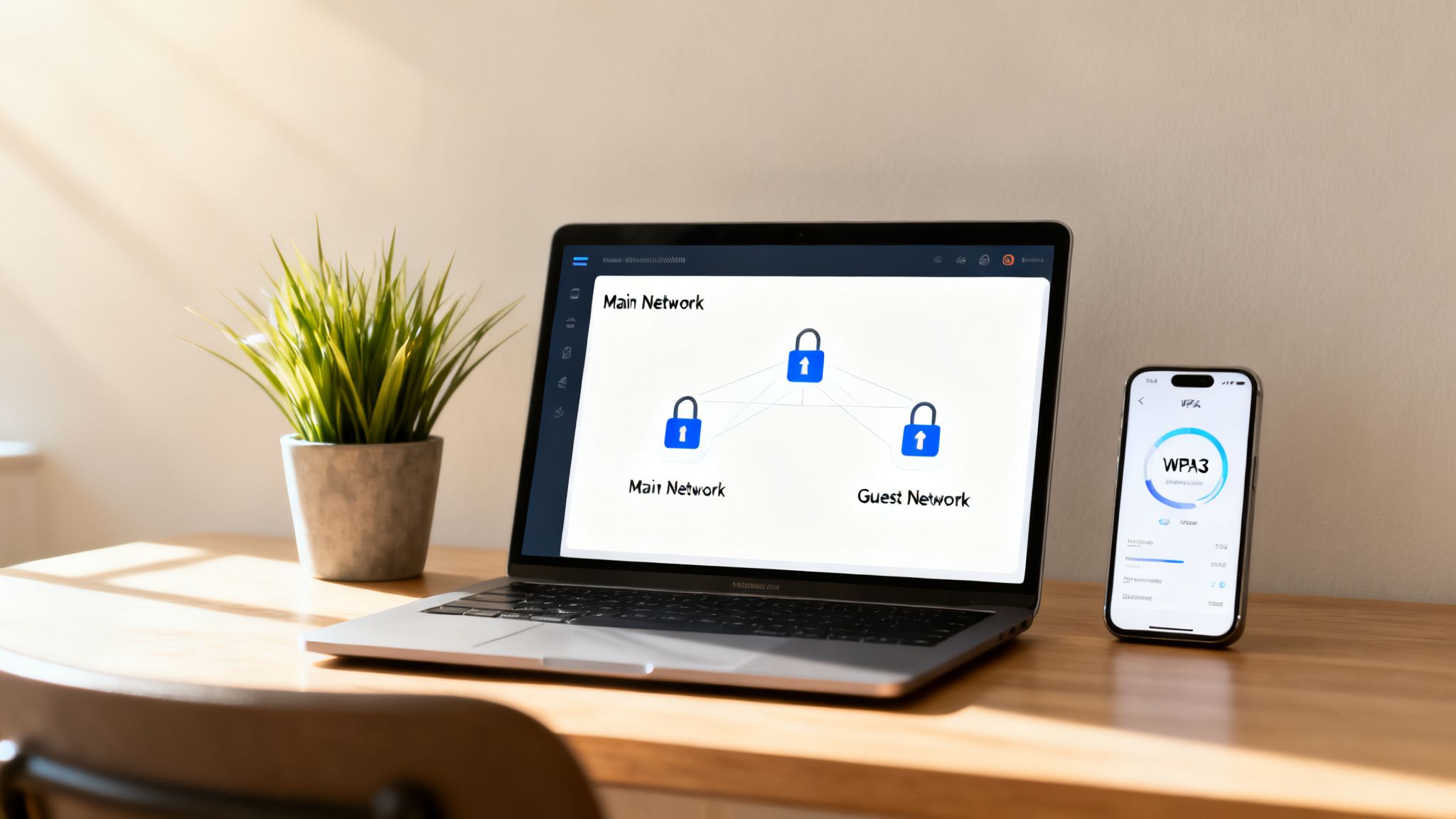
Next, and this is non-negotiable, you need to create a separate guest network. This is one of the single biggest security perks of using a proper AP. A guest network lets visitors get online without ever touching your primary network or seeing any of the devices on it, like your NAS drive or printers. It builds a digital wall between their devices and yours.
A well-configured guest network is a cornerstone of modern home network security. It completely isolates potentially insecure visitor devices—from a friend's out-of-date laptop to a random smart gadget you don't control—from your trusted personal network.
Finally, have a look for a setting called Quality of Service (QoS). This feature lets you tell the network which types of data are most important. For instance, you could prioritise video conferencing traffic to keep your work calls smooth and stutter-free, even if someone else in the house starts streaming a 4K movie. It’s a simple tweak that makes a noticeable difference in daily use.
If the DIY approach still seems a bit daunting, professional Access Point Installation Services can handle everything from the cabling to the final configuration, ensuring you get optimal performance right from day one.
Fine-Tuning and Fixing Common WiFi Problems
Getting your new access point powered on and configured is a great first step, but the job isn't quite done. To get that flawless, rock-solid performance you're after, a little fine-tuning is almost always needed. This is where you iron out the subtle issues that plague so many networks, like interference from your neighbours' WiFi or mismatched power levels between your devices.
One of the most common culprits behind slow or unstable WiFi is channel congestion. In a typical residential area, you might have dozens of networks all trying to shout over each other on the same handful of radio channels. Thankfully, your AP’s controller software almost always includes a tool for a channel scan or RF environment scan. Running this gives you a clear picture of which channels are jam-packed and which ones are wide open.
Taming Interference and Power Levels
Once you have that scan data, you can manually set your AP's 2.4 GHz and 5 GHz radios to operate on the least congested channels available. For the 2.4 GHz band, it is absolutely crucial to stick to channels 1, 6, or 11. These are the only three that don't overlap, which is key to minimising interference. This simple change alone can dramatically boost stability.
Another powerful but often overlooked setting is transmission power. The default is usually "Auto" or "High," which sounds great on paper but can actually cause more problems than it solves. Blasting a signal at full strength can create unnecessary interference for your own devices and your neighbours. It also leads to the dreaded "sticky client" problem, where your phone or laptop clings to a distant AP's weak signal even when a much closer one is available.
The goal isn't to blast a signal as far as possible. It's to create a clean, well-defined coverage "cell" around each AP. Setting your transmission power to "Medium" or even "Low" is often the best move, as it encourages devices to roam seamlessly to the best connection.
A Quick Troubleshooting Checklist
Even with a perfectly tuned network, hiccups can still happen. If you're hit with random disconnects or baffling slowdowns, run through this simple diagnostic checklist before you start pulling your hair out.
Reboot Everything: Start with the oldest trick in the book because it often works. Power cycle your modem, router, any network switches, and the access point itself. This can resolve a surprising number of temporary glitches.
Check Your Cables: A loose or damaged Ethernet cable connecting your AP to the switch is a classic cause of intermittent drops and poor performance. Make sure the connectors have clicked securely into place on both ends.
Update The Firmware: Manufacturers regularly release firmware updates that contain vital security patches and performance improvements. Check your AP’s controller for any available updates and get them installed.
Isolate The Problem: Is the slowness affecting all your devices, or just one? If it’s only a single device, the issue probably lies with that specific laptop's or phone's drivers or settings, not your AP.
Securing Your Network Beyond A Single Password
As you add more and more devices to your home network, that single shared Wi-Fi password starts to look like a major weak spot. It's a problem that gets worse if you're managing a multi-unit property, have guests over all the time, or your house is brimming with smart gadgets from a dozen different brands. Every device using that one password is a potential way in for trouble.
The answer is to take a page from the enterprise IT playbook and switch to identity-based access. Instead of one key for the entire castle, you give each person and device their own unique, managed key. This shift in thinking totally transforms how you secure your wifi ap for home, making it far more secure. If you're looking for the basics, understanding how to secure your home network and protect your Wi-Fi is the perfect place to start.
The Problem with "Internet of Things" Security
Let's be honest: many smart home devices have notoriously bad security. A cheap smart plug or a connected kitchen appliance could have a vulnerability you'll never hear about. If that device is sitting on your main network, a single flaw could potentially expose everything else—your work laptop, your phone, and all your private data.
The real challenge today isn’t just about keeping attackers out; it's about protecting your trusted devices from each other. This is where device isolation stops being a neat feature and becomes a critical layer of your security.
This is where more advanced platforms can step in, integrating directly with your access point to build a network that's not just faster, but fundamentally safer. Systems like Purple can do away with clunky shared passwords, replacing them with seamless, identity-driven authentication for people and their devices.
Bringing Enterprise-Grade Security Home
Picture this: a guest arrives and connects to your Wi-Fi securely without ever asking you for the password. Their phone is automatically put onto an isolated guest network, completely walled off from your personal computers and smart home tech. With modern identity-based networking, this isn't science fiction—it's completely achievable.
This approach brings some serious practical benefits to the table:
- Seamless Guest Access: Visitors can log in through a simple portal or even be reconnected automatically on their next visit. No more spelling out a complicated password.
- Device Isolation: You can set up separate, firewalled networks for different types of users or gadgets. For instance, all your IoT devices can be corralled onto their own dedicated, restricted network.
- Individual Credentials: In a multi-tenant building, each resident gets their own private network login, making sure their devices are completely isolated from their neighbours'.
By integrating these kinds of features with your home AP, you're building a network that runs on a zero-trust mindset. It’s a smarter, far more secure way to handle the dozens of connections in any modern home.
Common Questions About Home WiFi APs
Even with a solid plan, dipping your toes into the world of dedicated access points can throw up a few last-minute questions. It’s completely normal to want to nail down the finer details before you part with your cash. So, let’s tackle some of the most common queries we hear from people setting up a home WiFi AP for the first time.
Think of this as the final check, giving you the confidence to get it right.
How Many Access Points Do I Actually Need?
There’s no magic number here. The answer depends entirely on your home's size, layout, and what it’s made of. A modern, open-plan 1,500 square foot home with standard plasterboard walls might get flawless coverage from a single, well-placed AP mounted on the ceiling.
But take a 2,500 square foot older home with thick brick walls and multiple floors, and you could easily need two or three APs to kill off every dead zone.
The best approach is to start with one. Do a proper site survey, as we covered earlier, and see exactly where the signal starts to drop. You'll often get far better results from two APs running at medium power than one blasting away at full strength.
Can I Mix and Match AP Brands With My Router?
Absolutely. You can plug an access point from any brand—whether that’s UniFi, Ruckus, or Aruba—into any router, including the one supplied by your ISP like BT or Virgin Media. The AP just needs that physical Ethernet connection back to the router to get online.
The real sticking point isn't compatibility between your router and AP, but within your ecosystem of APs. If you’re planning on using more than one access point, it is highly recommended you stick with the same brand for all of them. This is crucial for seamless roaming and being able to manage everything from one central place.
Is a WiFi 6E Access Point Worth It Right Now?
WiFi 6E is genuinely exciting. It unlocks the new 6 GHz band, which is like having a private, multi-lane motorway for your compatible gadgets, completely free from the traffic jams caused by older WiFi devices. If you've got the latest flagship phones or high-end laptops that support WiFi 6E and live in a very built-up area with lots of WiFi congestion, it can make a real difference.
For most UK homes today, however, a standard WiFi 6 access point is more than enough and offers much better value for money. The 6 GHz ecosystem is still in its early days, and you’ll likely find a solid WiFi 6 AP will serve you perfectly well for years to come.
What’s the Real Difference Between Indoor and Outdoor APs?
It all comes down to durability and weather-proofing. An outdoor access point is built like a tank to survive the elements—rain, dust, extreme temperatures, and UV rays. They feature rugged, weatherproof casings with special seals to stop moisture and dirt from frying the electronics inside.
If you stick an indoor model outside, even somewhere sheltered, it's only a matter of time before condensation or dust gets in and kills it. On the flip side, using an outdoor AP indoors is perfectly safe, but it's usually overkill and won't win any interior design awards. Always pick the right tool for the job.
At Purple, we specialise in creating secure, identity-based networking that replaces shared passwords with seamless, enterprise-grade access for any environment. Learn more about how Purple can transform your network.